
TL;DR:
- Shared team calendars connect organizational schedules and prevent conflicts through real-time updates. They link team activities to workflows, improve coordination, and foster transparency. Proper setup and maintenance of these calendars enhance team efficiency and reduce last-minute planning issues.
A shared team calendar is defined as a centralized coordination platform that connects schedules, resources, and priorities across an entire organization. The role of calendars in team events goes far beyond blocking off dates. Tools like Microsoft Teams, Teamup, and Notion Calendar now function as operational layers that link individual commitments to group outcomes. When a team lead can see who is available, what depends on what, and where capacity is tight, planning stops being reactive and starts being deliberate. That shift is the difference between a well-run event and one that falls apart at the last minute.
What are the core functions of calendars in team events?
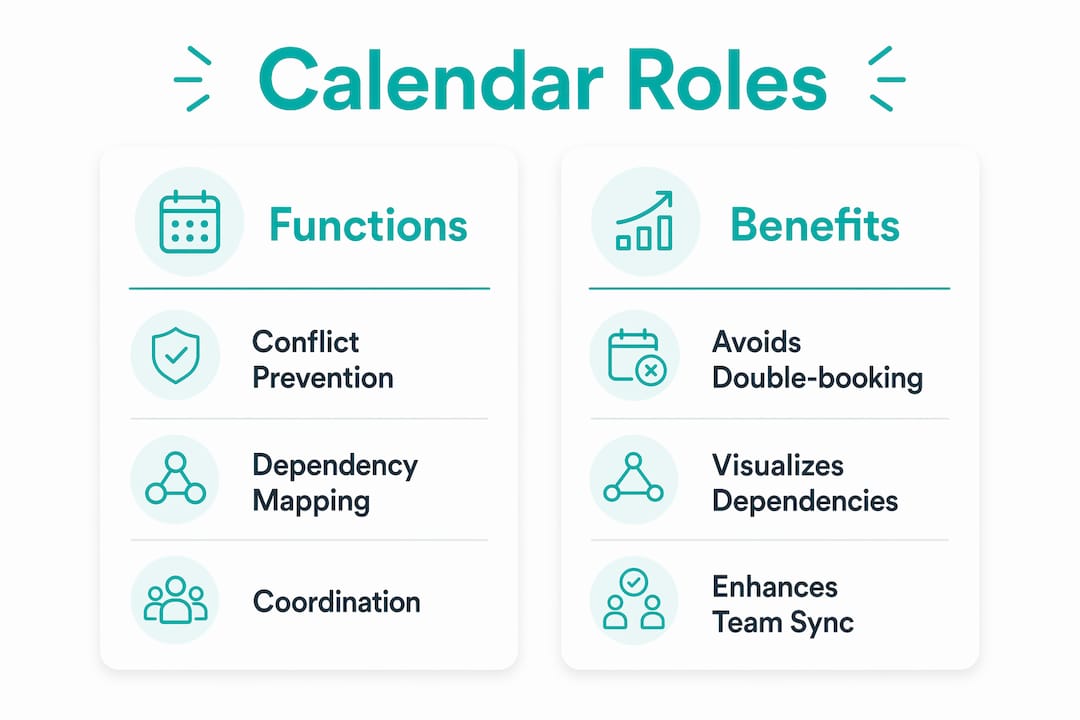
Team calendars serve three distinct functions: conflict prevention, dependency mapping, and real-time coordination. Each one directly affects how smoothly a team event runs from planning through execution.

Conflict prevention is the most visible benefit. Shared calendars prevent double-bookings and give every team member a role-customized view updated in real time. That eliminates the back-and-forth emails that waste hours before any event even starts.
Dependency mapping is less obvious but more valuable. Enterprise calendars connect team activities to real business outcomes, surfacing which events depend on which resources, deadlines, or approvals. A product launch event, for example, cannot be scheduled without knowing when the design team finishes assets and when the venue confirms capacity.
Real-time coordination closes the loop. When one event shifts, every connected stakeholder sees the update immediately. That single capability reduces the volume of clarifying messages that slow teams down before major events.
- Conflict prevention: Shared visibility stops two teams from booking the same room, vendor, or presenter.
- Dependency tracking: Linking events to project milestones reveals scheduling risks weeks in advance.
- Capacity awareness: Seeing who is already committed prevents overloading key people.
- Transparency: Visible availability builds empathy and reduces last-minute surprises.
- Real-time updates: Instant syncing means no one acts on outdated information.
Pro Tip: Color-code event types from day one. Use one color for external commitments, another for internal milestones, and a third for focus blocks. Teams that do this report fewer scheduling conflicts because the visual pattern makes overload obvious at a glance.
How do shared calendars differ from personal calendars for team events?
Personal calendars and shared enterprise calendars solve fundamentally different problems. Knowing the difference helps team leads design the right system instead of patching a personal tool into a team workflow.
Personal calendars manage individual time. They track appointments, reminders, and personal deadlines. They are private by default and optimized for one person's decision-making. Shared calendars, by contrast, are built for group coordination. Shifting from spreadsheets and email to shared centralized calendars dramatically improves real-time visibility and reduces work built on outdated information.
Enterprise calendars go one level further. Platforms like monday.com integrate calendar views directly with project boards, resource allocation tables, and goal tracking. That means a team event does not just appear as a date. It appears as a milestone connected to deliverables, owners, and budgets.
| Feature | Personal calendar | Shared team calendar | Enterprise calendar |
|---|---|---|---|
| Primary user | Individual | Team or department | Organization-wide |
| Default visibility | Private | Configurable by role | Role-based and filtered |
| Integration | Basic reminders | Communication tools | Project management systems |
| Event context | Personal appointments | Team commitments | Business outcomes and goals |
| Conflict detection | Manual | Automatic | Automatic with dependency alerts |
The table above shows why team leads who rely on personal calendars for group coordination consistently hit the same wall. The tool was not built for the job. Role-based views and filtered access, available in tools like Teamup and Notion Calendar, are what make shared calendars genuinely usable at scale.
What practical strategies improve calendar use for scheduling team activities?
The best calendar systems are designed, not inherited. Team leads who get the most from their calendars follow a deliberate setup process rather than letting the calendar fill up reactively.
-
Set up calendar groups and permission controls. Divide calendars by function: one for company-wide events, one for department milestones, one for external commitments. Assign view or edit permissions based on role. This keeps each person's view relevant without hiding coordination-critical information.
-
Build in buffer times and focus blocks. Explicit availability rules protect focus and prevent reactive calendar filling with low-value meetings. Block 90-minute focus windows at least three times per week before external requests can fill those slots.
-
Use event types and color-coding. Notion Calendar supports event types like "focus," "out of office," and "external meeting." Using these signals helps teammates read the calendar at a glance without opening each event.
-
Apply round-robin and collective scheduling correctly. Round-robin scheduling distributes external meeting loads, while collective scheduling finds common slots for mandatory internal meetings. Mixing them up creates either overloaded individuals or unnecessary group calls.
-
Maintain calendar hygiene. Remove recurring events that no longer serve a purpose. Archive completed project calendars. Design shared calendars narrowly around what the team needs to see for coordination, not as a personal dumping ground.
-
Advocate for a calendar-first culture. When team members treat the calendar as the source of truth, fewer decisions get made on incomplete information. That cultural shift starts with the team lead modeling the behavior consistently.
Pro Tip: Run a monthly calendar audit. Ask one question for every recurring event: "Would we reschedule this if it disappeared?" If the answer is no, cancel it. Teams that do this free up an average of two to three hours per person per week.
Which calendar features matter most for team event management?
Not all calendar features carry equal weight for team event planning. The features below separate tools that support real coordination from tools that just display dates.
Multi-day event support is non-negotiable for any event that spans more than one day. Conferences, offsites, and training programs all require this. Notion Calendar's event management features include multi-day events, participant invitations, and event type labels that signal different kinds of commitments.
Real-time syncing across devices and platforms prevents the version-control problem. When a venue changes or a speaker cancels, every team member sees the update immediately regardless of whether they are on mobile, desktop, or a third-party integration.
Filtering by role, location, or event type keeps large team calendars usable. Without filters, a company-wide calendar becomes noise. Teamup's role-customized views solve this directly by showing each person only the events relevant to their function.
Integration with communication tools closes the gap between planning and execution. Microsoft Teams and Outlook both embed calendar events directly into chat threads, so context travels with the invite. That reduces the number of "what's this meeting about?" messages before every event.
- Real-time sync across devices and platforms
- Role-based filtering and custom views
- Multi-day event and participant management
- Integration with Microsoft Teams, Outlook, and project management tools
- Custom access settings for privacy and relevance
- Automated reminders and notification routing
The right combination of these features depends on team size and event complexity. A 10-person team running monthly socials needs different depth than an HR department coordinating quarterly all-hands events across multiple offices.
How does calendar transparency boost team collaboration and event success?
A practical team calendar acts as a lightweight operational dashboard answering three questions: who is working, when are they available, and what deadlines matter this week. That clarity alone reduces the coordination friction that slows event planning.
Transparency does something less obvious too. Calendar-first teams gain fewer bad decisions and more empathy by sharing the downstream impacts of meetings and events. When a team member can see that a colleague has three external calls and a project deadline on the same day, they stop scheduling a fourth meeting without thinking twice.
Visibility also surfaces scheduling risks before they become crises. A team lead reviewing the calendar two weeks before a major event can spot capacity pressure, vendor conflicts, or approval gaps that would otherwise appear as emergencies on the day. That early warning function is one of the most underused benefits of shared calendar visibility.
The teams that get the most from their calendars treat them as living documents. They review scope regularly, remove irrelevant events, and add context to entries so that anyone reading the calendar understands what an event requires. That discipline is what separates a calendar that coordinates from one that just clutters.
Key Takeaways
Shared team calendars are the most direct tool for reducing coordination friction, preventing scheduling conflicts, and connecting team events to real business outcomes.
| Point | Details |
|---|---|
| Calendars as coordination tools | Shared calendars prevent conflicts and surface dependencies that personal calendars cannot show. |
| Enterprise vs. personal calendars | Enterprise tools like monday.com link events to goals, resources, and project milestones. |
| Practical calendar hygiene | Buffer times, focus blocks, and narrow scope keep calendars relevant and reduce meeting overload. |
| Feature selection matters | Real-time sync, role-based filtering, and tool integration separate functional calendars from decorative ones. |
| Transparency builds empathy | Visible schedules help teams make smarter decisions and reduce last-minute event failures. |
Why most teams are using their calendars wrong
I have watched teams invest in every project management tool available and still run chaotic events. The calendar is almost always the problem. Not because the tool is bad, but because the team treats it as a personal diary instead of a shared operational system.
The most common mistake I see is over-sharing without structure. A calendar that shows every meeting, every personal reminder, and every tentative appointment is not a coordination tool. It is noise. Layered visibility is the fix: show coordination-critical events to the team, keep personal details private, and filter by role so each person sees what is actually relevant to them.
The second mistake is under-maintaining. Teams set up a shared calendar in january, add a few events, and never audit it again. By march, it is full of outdated recurring meetings and canceled events that no one removed. That clutter destroys trust in the calendar as a source of truth.
The teams I have seen get this right share one habit: they treat the calendar review as a standing agenda item, not an afterthought. They ask whether every event still belongs, whether every recurring meeting still serves a purpose, and whether the calendar reflects reality. That discipline is what makes event coordination feel effortless instead of exhausting.
— Konstantin
How Hophey supports team event coordination
Team leads who want a calendar system built specifically for celebrations and group events have a direct option in Hophey. The platform combines shared event calendar management with transparent fund collection, private chat coordination, and automated reminders in one place.
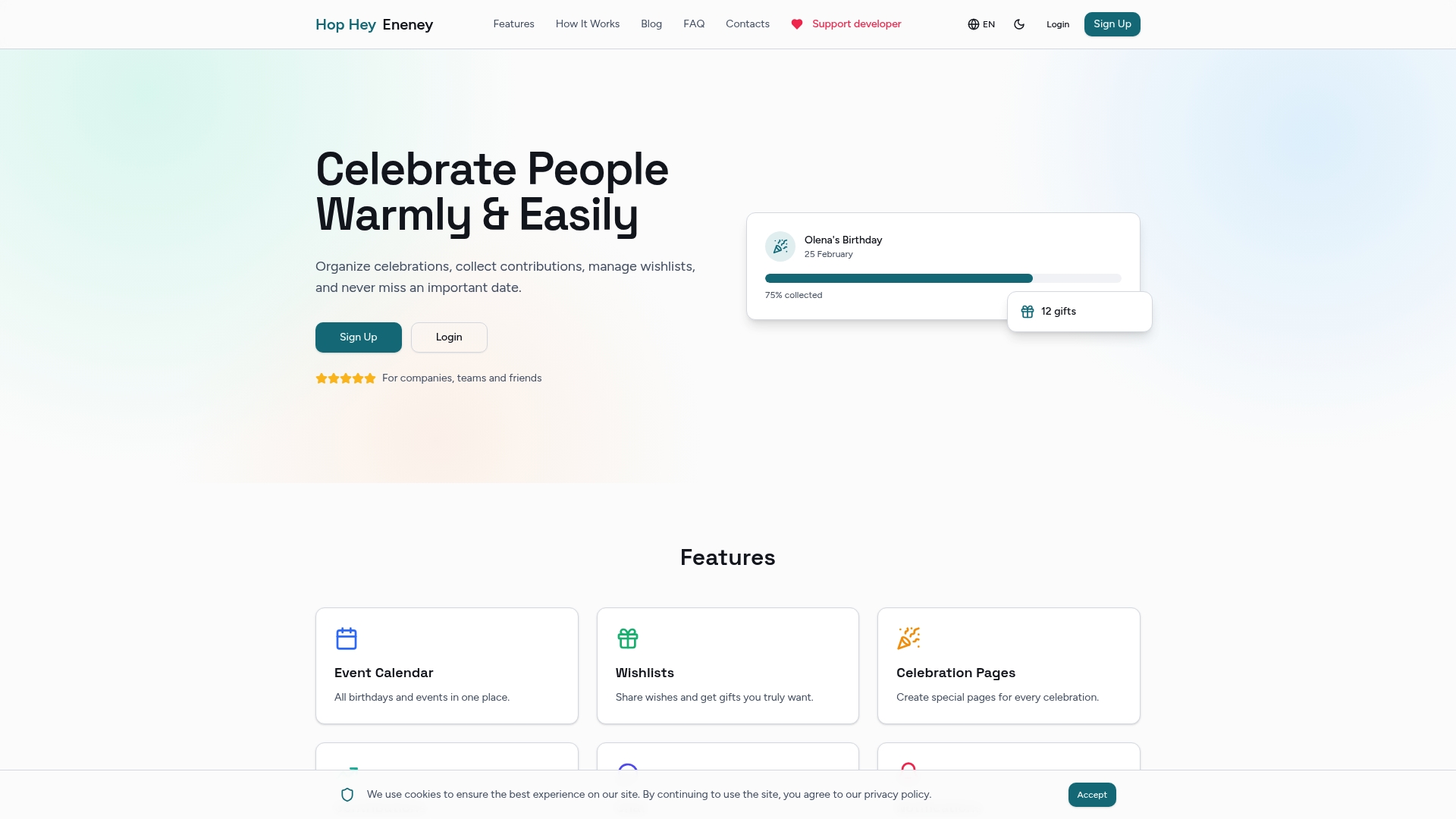
Hophey is designed for HR departments, remote teams, and friend groups who need to coordinate birthdays, corporate milestones, and surprise events without the chaos of spreadsheets and group chats. The platform supports flexible roles in event planning, multi-currency contributions, and Telegram notifications so every team member stays informed. For teams ready to move beyond basic calendar tools, Hophey for Teams offers a purpose-built coordination layer that keeps events organized and people genuinely engaged.
FAQ
What is the role of calendars in team events?
Team calendars serve as shared coordination platforms that prevent scheduling conflicts, map event dependencies, and connect team activities to business outcomes. They replace reactive email chains with real-time visibility across the entire team.
How do shared calendars improve team collaboration?
Shared calendars reduce coordination friction by giving every team member instant visibility into availability, deadlines, and event dependencies. That transparency leads to faster decisions and fewer last-minute surprises.
What calendar tools work best for team event planning?
Microsoft Teams, Teamup, and Notion Calendar each offer role-based views, real-time syncing, and integration with project management tools. The best choice depends on team size and how deeply the calendar needs to connect with other workflows.
How do you prevent calendar clutter in a team setting?
Apply layered visibility by showing only coordination-critical events on the shared calendar and keeping personal details private. Run a monthly audit to remove outdated recurring events and archive completed project calendars.
What is the difference between round-robin and collective scheduling?
Round-robin scheduling distributes external meeting requests evenly across team members, while collective scheduling finds a common time slot for mandatory internal group meetings. Using them interchangeably creates either individual overload or unnecessary group calls.